Blog
Why Is the Machine Not Responding to Control Panel Commands?
By Ramana Machines · November 11, 2026
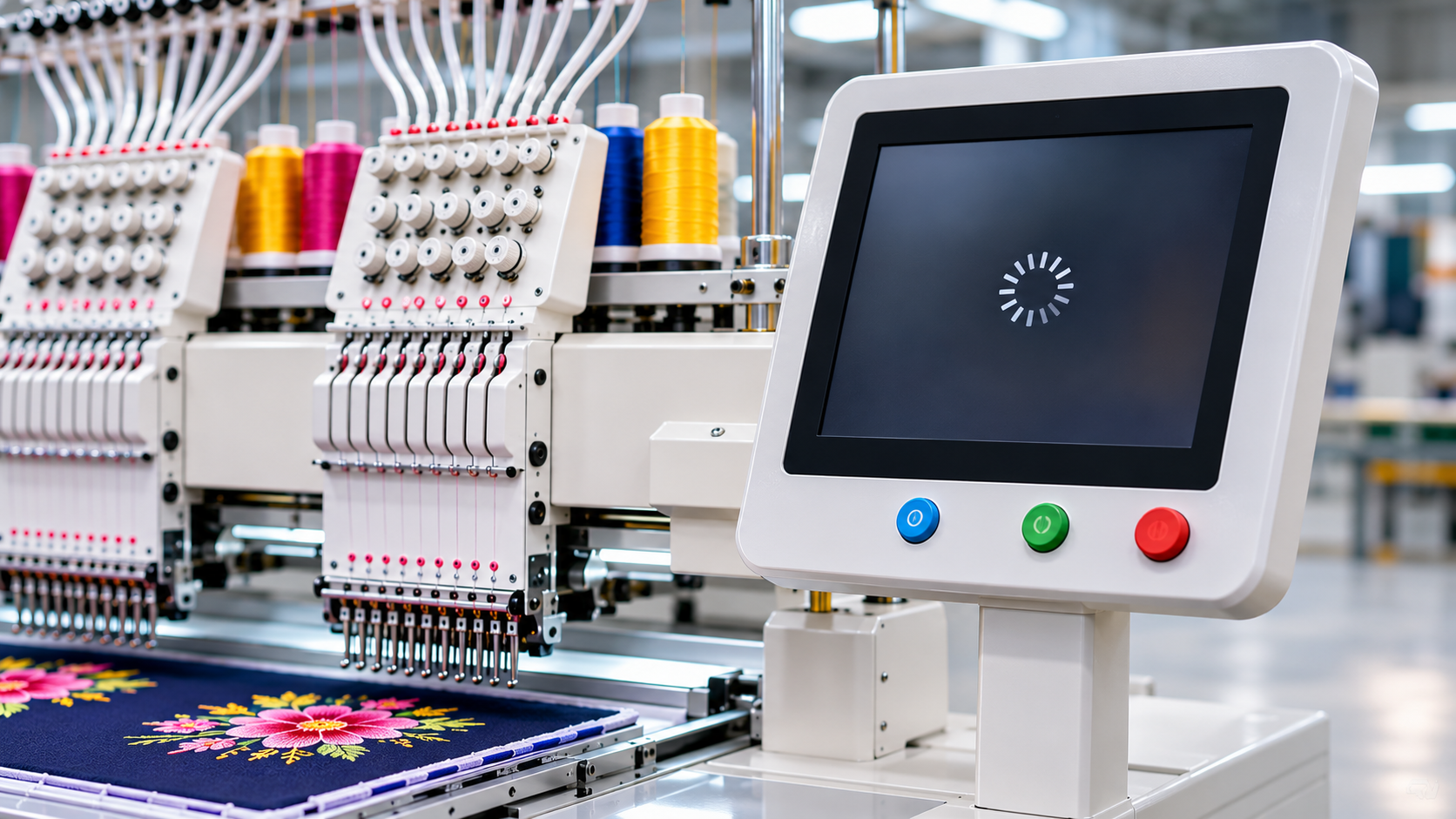
When an embroidery machine does not respond to control panel commands, production can come to a standstill. Learn how the touchscreen, control board, communication cables, power supply, safety switches, and motor driver work, along with common faults and practical troubleshooting solutions.
An automatic embroidery machine depends on its control panel to manage important operations such as selecting designs, adjusting stitching speed, changing embroidery settings, starting or stopping production, and monitoring machine status. When the control panel stops responding, operators may be unable to continue production or access important machine functions.
Sometimes the issue is minor, such as a loose connection or an incorrect operating setting. In other cases, the problem may involve the control panel, communication cables, power supply, control board, sensors, or software.
Understanding how these components work can help operators identify the source of the problem and take suitable corrective action. This guide explains the important control-system parts, common reasons for unresponsive commands, and practical troubleshooting solutions.
1. Check the Control Panel and Touchscreen
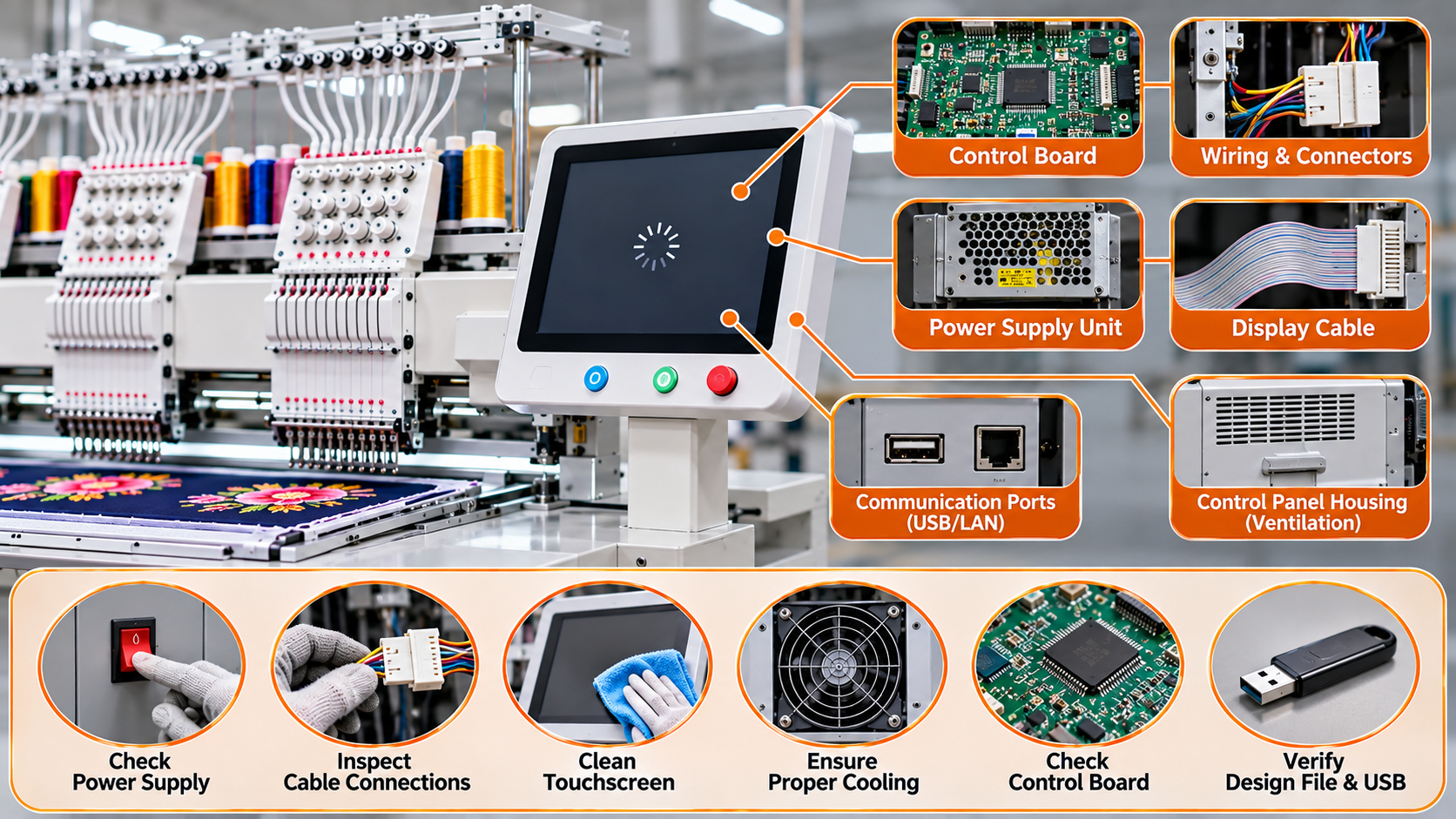
The control panel is the main interface between the machine operator and the embroidery machine. It allows operators to enter commands, select embroidery designs, adjust parameters, and monitor machine operation.
If the display does not respond when touched or buttons do not work, the problem may be related to the panel itself or its connection with the control system.
Important parts and their functions:
- Touchscreen: Allows operators to select options and enter commands by touching the display.
- Function buttons: Provide access to specific machine operations, depending on the model.
- Display unit: Shows machine settings, operating status, design information, and error messages.
- Panel circuit board: Processes input from the touchscreen or physical buttons and communicates commands to the machine controller.
Possible causes:
- Touchscreen calibration problems.
- Damaged or worn function buttons.
- Dust or moisture affecting the panel.
- Loose panel connections.
- Internal panel circuit-board faults.
Solutions:
- Check whether the display is powered on properly.
- Clean the touchscreen using a suitable cleaning method recommended by the manufacturer.
- Check whether all buttons or only specific functions are unresponsive.
- Restart the machine according to the manufacturer's instructions.
- If the display works but touch commands do not, request a touchscreen inspection.
- Contact a technician if the panel remains unresponsive.
2. Inspect the Main Control Board
The main control board is responsible for processing commands received from the control panel and coordinating different machine functions. It communicates with the motor driver, sensors, and other electronic components.
If the control board develops a fault, the machine may not execute commands even when the control panel appears to be working normally.
Important parts and their functions:
- Main control board: Processes machine instructions and coordinates operations.
- Processor: Executes programmed instructions and manages control functions.
- Memory components: Store machine parameters, settings, and other required information.
- Input/output connections: Allow the board to receive signals and send commands to other components.
Possible causes:
- Electronic component failure.
- Unstable electrical supply.
- Loose internal connections.
- Moisture or dust contamination.
- Damaged circuit tracks or connectors.
Solutions:
- Record any error message displayed on the machine.
- Check whether the machine starts normally but fails to execute commands.
- Look for visible warning indicators without opening the electrical enclosure.
- Arrange a professional inspection of the control board.
- Replace or repair electronic components only after proper diagnosis.
Do not attempt to repair the control board yourself unless you are qualified to work on electronic equipment.
3. Check the Communication Cables and Connectors
The control panel needs to communicate with the main control board. This communication usually takes place through cables and connectors designed to transfer signals between electronic components.
If the connection is interrupted, the panel may display information but fail to send commands correctly.
Important parts and their functions:
- Communication cable: Transfers data and control signals between the panel and the control system.
- Connectors: Secure the cable connections between electronic components.
- Cable terminals: Provide contact points for signal transmission.
- Cable harness: Organizes and routes multiple electrical or communication wires through the machine.
Possible causes:
- Loose connectors.
- Damaged communication cables.
- Broken internal wires.
- Poor contact at connector terminals.
- Cable damage caused by vibration or repeated movement.
Solutions:
- Check for visible cable damage around accessible areas.
- Look for loose external connections.
- Switch off and isolate the machine before any permitted connection inspection.
- Ask a technician to test communication cables and connectors.
- Replace damaged cables with compatible parts recommended by the manufacturer.
Avoid pulling or forcing connectors, as this can damage the terminals.
4. Inspect the Power Supply System
The control panel and electronic control system require a stable electrical supply. If the voltage is insufficient or fluctuating, the display may freeze, restart unexpectedly, or stop responding to commands.
Important parts and their functions:
- Power supply unit: Converts incoming electrical power into the required supply for electronic components.
- Circuit breaker: Interrupts electrical supply under certain fault conditions to help protect the circuit.
- Power switch: Controls the electrical supply to the machine.
- Voltage protection system: Helps protect electronic equipment against specified electrical supply irregularities, where fitted.
Possible causes:
- Voltage fluctuations.
- Loose power connections.
- Faulty power supply unit.
- Damaged power switch.
- Electrical overload.
- Incorrect incoming supply.
Solutions:
- Check whether the machine receives the required electrical supply.
- Observe whether the display switches off or restarts repeatedly.
- Check for visible external cable damage.
- Have a qualified electrician inspect the power supply and connections.
- Use suitable electrical protection according to the machine manufacturer's specifications.
Never bypass a circuit breaker or repeatedly reset a tripping protection device without identifying the cause.
5. Check the Emergency Stop and Safety Interlocks
Embroidery machines may include safety systems that prevent certain operations when a safety condition is not satisfied. Sometimes operators mistake a safety lock or emergency stop condition for a control panel fault.
Important parts and their functions:
- Emergency stop button: Stops machine operation during an emergency.
- Safety switch: Detects whether a specified safety condition is satisfied.
- Interlock system: Prevents selected machine operations when a safety condition is not met.
- Safety circuit: Monitors safety-related signals and controls machine operation accordingly.
Possible causes:
- Emergency stop button remains activated.
- Safety switch is not in the correct position.
- Safety interlock has detected an unsafe condition.
- Damaged safety wiring.
- Faulty safety switch.
Solutions:
- Check whether the emergency stop button has been activated.
- Follow the manufacturer's procedure to release and reset it.
- Check whether machine covers or other safety components are correctly positioned.
- Observe any safety-related warning messages.
- Contact a qualified technician if the safety system does not reset.
Never bypass safety switches or interlocks to make the machine run.
6. Check Software, Machine Parameters, and Design Files
The control panel depends on software and stored machine parameters to process commands. If the machine software freezes, settings become corrupted, or an incompatible design file is loaded, certain functions may stop working correctly.
Important parts and their functions:
- Machine software: Controls the machine's programmed functions and operating interface.
- Parameter memory: Stores operating settings required for machine functions.
- Design storage: Holds embroidery files selected for production.
- USB or data interface: Allows compatible design files and other data to be transferred to the machine.
Possible causes:
- Incorrect machine parameters.
- Incompatible embroidery file.
- Corrupted design data.
- Interrupted software update.
- Incorrect settings loaded into the control system.
Solutions:
- Check whether the panel responds to basic functions but fails when opening a particular design.
- Test the machine with a previously verified design file.
- Confirm that the design format is supported by the machine.
- Keep a backup of machine parameters and important design files.
- Contact technical support before changing advanced settings or reinstalling software.
Do not load unverified software or change factory parameters without proper instructions.
7. Inspect the Motor Driver and Drive Communication
The motor driver receives control instructions and regulates the electrical power supplied to the motor. If communication between the control board and motor driver is interrupted, the machine may receive commands but fail to perform the requested movement.
Important parts and their functions:
- Motor driver: Controls motor operation according to signals from the control system.
- Main motor: Converts electrical energy into mechanical movement.
- Encoder: Provides feedback about motor position or speed in systems where fitted.
- Drive communication cable: Transfers control and feedback signals between electronic components.
Possible causes:
- Motor driver fault.
- Communication interruption.
- Encoder feedback problem.
- Electrical supply issue.
- Motor protection or overload condition.
Solutions:
- Check whether the control panel displays a motor-related error.
- Observe whether the machine accepts commands but does not move.
- Record the exact error code before restarting.
- Arrange an inspection of the motor driver and feedback system.
- Avoid changing motor parameters without technical guidance.
8. Check Whether the Problem Is Related to a Specific Machine Function
Sometimes the control panel is not completely unresponsive. Instead, only certain commands fail to work. Identifying which functions are affected can help narrow down the problem.
Observed problem | Possible component involved | Recommended action |
| Touchscreen does not respond | Touchscreen or panel board | Inspect panel operation |
| Display is completely blank | Power supply or panel connection | Check power and arrange inspection |
| Display works but commands are not executed | Main control board or communication cable | Check communication system |
| Machine restarts repeatedly | Power supply or electronic control system | Inspect electrical supply |
| Design cannot be opened | Design file or software compatibility | Test a supported design file |
| Machine accepts commands but does not move | Motor driver or safety interlock | Check error messages and drive system |
| Some buttons work while others fail | Touchscreen or function buttons | Inspect the affected input controls |
| Emergency stop warning remains active | Emergency stop or safety circuit | Check the safety system |
9. Prevent Control Panel Problems Through Regular Maintenance
Electronic components require suitable operating conditions and basic preventive care. Dust, moisture, unstable power, and damaged cables can gradually affect the reliability of the control system.
Daily checks:
- Check whether the display and buttons respond normally.
- Look for warning messages before production.
- Keep the control panel clean and dry.
- Observe any unexpected display freezing or restarting.
- Check accessible cables for visible damage.
Weekly checks:
- Inspect accessible cable routing.
- Check that connectors are not visibly damaged.
- Keep the machine surroundings free from excessive dust.
- Review recurring error messages.
- Back up important designs and machine parameters where supported.
Periodic technical checks:
- Inspect control-board connections.
- Check the power supply and protection system.
- Verify communication between electronic components.
- Inspect the motor driver and feedback system.
- Check software and parameter settings according to manufacturer instructions.
10. What Information Should You Give a Technician?
When the control panel stops responding, providing clear information can help the technician identify the fault more efficiently.
Before requesting service, record:
- Machine model and serial number.
- Whether the display is blank, frozen, or working normally.
- Which commands are not responding.
- Whether the issue occurs immediately after switching on or during production.
- Any error code or warning message.
- Whether the machine recently experienced a power interruption or maintenance work.
- Whether the problem occurs continuously or intermittently.
If possible, take a short video showing the issue without opening electrical panels or touching exposed components.
Get the Right Guidance for Your Textile Machinery Requirements
A control panel problem can originate from several areas, including the touchscreen, main control board, communication cables, power supply, software, and motor driver. Identifying the affected function and recording error messages can make troubleshooting more effective.
Ramana Machines is a supplier, distributor, and trader of knitting and textile machinery. We help businesses explore machinery options according to their production requirements and operational needs. Visit www.ramanainternational.com to learn more about our machinery range or contact our team to discuss your requirements.